
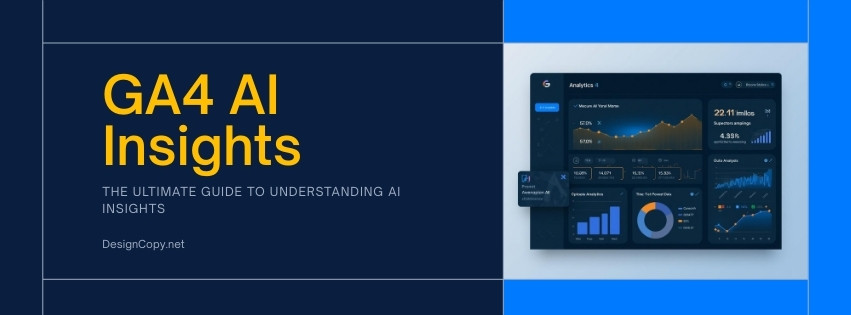
GA4 + AI: Get Insights Without Being a Data Scientist
Last Updated: March 23, 2026 | Reading Time: 12 min
You’re staring at your GA4 dashboard. Rows of numbers, graphs going in every direction, and a creeping feeling that you’re missing something important buried in the data.
Sound familiar? You’re not alone. Most marketers and site owners use barely 10% of what GA4 actually offers — especially the AI-powered features that can do the heavy analytical lifting for you.
This ga4 ai insights guide will walk you through every AI feature inside Google Analytics 4, show you how to set them up properly, and give you ready-to-use ChatGPT prompts to turn raw data into actionable strategies. No statistics background needed.
🔑 Key Takeaways
- GA4’s built-in AI surfaces traffic anomalies, trends, and predictions automatically — you just need to know where to look
- Predictive audiences let you target users likely to convert or churn within the next 7 days
- Combining GA4 data with ChatGPT prompts turns numbers into plain-English recommendations
- You don’t need a data science degree — just the right setup and the frameworks in this guide
MARKETERS USING AI ANALYTICS FEATURES
28%
Google Marketing Platform Survey, 2025
That stat means 72% of GA4 users are leaving powerful AI features untouched. By the end of this article, you won’t be one of them.
What Are GA4 AI Insights (and Why Should You Care)?
GA4’s AI insights are machine learning models that run continuously on your analytics data. They detect unusual patterns, forecast future behavior, and surface opportunities you’d never spot manually scrolling through reports.
Unlike Universal Analytics, which was essentially a glorified counter, GA4 was built from the ground up with machine learning at its core. Google’s AI engine analyzes your data in three key ways:
- Automated Insights: GA4 proactively alerts you when something unusual happens — a traffic spike, a drop in conversions, or a sudden shift in user behavior
- Predictive Metrics: Machine learning models estimate purchase probability, churn probability, and predicted revenue for each user
- Natural Language Queries: You can type questions like “what pages had the most traffic last week” directly into GA4’s search bar and get instant answers
The best part? These features are included in the free version of GA4. You don’t need GA4 360 to access them.
💡 Pro Tip
GA4’s AI insights improve dramatically with more data. If your site gets fewer than 1,000 users per week, the predictive features won’t activate. Focus on growing your traffic first using our AI SEO strategies before relying heavily on predictive audiences.
Setting Up GA4 for Maximum AI Performance
GA4’s AI is only as good as the data you feed it. Skip this setup section, and you’ll get mediocre insights. Nail it, and the AI becomes your best unpaid analyst.
Step 1: Enable Enhanced Measurement
Enhanced measurement automatically tracks scrolls, outbound clicks, site search, video engagement, and file downloads. Without it, GA4’s AI has a fraction of the behavioral data it needs.
Here’s how to turn it on:
- Go to Admin > Data Streams and select your web stream
- Toggle Enhanced Measurement to ON
- Click the gear icon and ensure all six events are enabled
- Hit Save and verify events appear in the Realtime report within 30 minutes
Step 2: Configure Key Events (Conversions)
GA4’s predictive models need conversion data to work. If you haven’t marked your key events, the AI can’t predict who’s likely to convert.
Mark these as key events at minimum:
- ➤ Form submissions (contact, newsletter signup)
- ➤ Purchase or transaction completions
- ➤ Clicks on critical CTAs (demo requests, phone calls)
- ➤ Content engagement thresholds (scroll depth > 75%, time on page > 3 minutes)
Step 3: Activate Google Signals and Data Collection
Google Signals enables cross-device tracking and enriches the AI models with demographic and interest data. Without it, you’re running GA4 with one eye closed.
Navigate to Admin > Data Settings > Data Collection and toggle Google Signals on. Also ensure your data retention is set to 14 months (the maximum for free GA4) under Data Settings > Data Retention.
⚠️ Warning
GA4 defaults data retention to just 2 months. If you don’t change this to 14 months, you’ll lose historical data that the AI models need for accurate trend analysis and predictions. Check this setting right now — it’s the single most common GA4 configuration mistake in 2026.
Want the Full AI Analytics Picture?
Our AI SEO Analytics Complete Guide covers every tool and technique for building a data-driven SEO strategy with artificial intelligence.
Anomaly Detection: Let AI Watch Your Traffic 24/7
GA4’s anomaly detection uses machine learning to establish baseline patterns for your metrics. When something deviates significantly — a traffic spike, a sudden conversion drop, or unusual geographic activity — it flags it automatically.
You’ll find these alerts in two places:
- Insights Card: Located on the GA4 Home screen, this card shows the most recent AI-detected anomalies
- Insights Hub: Click “View all insights” for a complete history of every anomaly GA4 has detected
How to Create Custom Insights
Automated insights are helpful, but custom insights are where the real power is. You can set conditions that trigger notifications when specific thresholds are crossed.
Here are five custom insights every site owner should configure in 2026:
- Traffic Drop Alert — Notify when daily users drop more than 25% compared to the same day last week
- Conversion Spike — Flag when key event completions increase by 50%+ (could indicate a viral post or successful campaign)
- Bounce Rate Anomaly — Alert when engagement rate falls below 40% on any high-traffic page
- Geographic Shift — Detect when traffic from a new country suddenly enters your top 5 sources
- Revenue Deviation — Notify when daily revenue drops below your 30-day rolling average by 20%+
To create them, go to Home > Insights > Create and define your metric, condition, and threshold. Enable email notifications so you don’t have to check the dashboard manually.
“The best analytics setup is one that comes to you with problems, not one you have to go dig through.”
— Krista Seiden, Analytics Advocate and GA4 Educator, 2025
Predictive Audiences: Know Who’ll Convert Before They Do
This is arguably GA4’s most powerful AI feature. Predictive audiences use machine learning to identify users who are likely to take a specific action within the next 7 days.
GA4 offers three predictive metrics:
- ✔ Purchase Probability — Likelihood a user will complete a purchase in the next 7 days
- ✔ Churn Probability — Likelihood an active user won’t return within the next 7 days
- ✔ Predicted Revenue — Estimated revenue from a user over the next 28 days
Requirements for Predictive Audiences
Predictive metrics don’t activate for every property. You need to meet these thresholds:
- ➤ At least 1,000 returning users who triggered the relevant condition (purchase, churn) over 28 days
- ➤ At least 1,000 returning users who did NOT trigger the condition in the same period
- ➤ Model quality must remain stable for a sustained period
Once active, you can create audiences like “Likely 7-day purchasers” and export them directly to Google Ads for remarketing. Imagine showing ads only to people GA4’s AI has already flagged as probable buyers. That’s a massive efficiency gain for your ad spend.
ROAS IMPROVEMENT WITH PREDICTIVE AUDIENCES
2-5x
Google Ads case studies, 2025
Finding Traffic Patterns with AI Insights
GA4’s automated insights don’t just flag problems. They also surface positive trends and patterns you’d otherwise miss in the noise of daily data.
Here’s what to look for on your Insights home screen each week:
- Rising Pages: GA4 highlights pages experiencing growth in sessions or engagement. These are content expansion opportunities — create supporting posts around topics that are already gaining traction
- New User Sources: The AI identifies emerging traffic sources before they show up in your standard reports. Spot a growing referral source early and you can double down on it
- Device and Location Shifts: If mobile traffic from a specific region is climbing, you might need to optimize page speed for mobile users in that area
💡 Pro Tip
Use GA4’s natural language search bar to ask plain-English questions. Try typing: “Which pages had the highest engagement last month?” or “What traffic source grew the most this quarter?” GA4 will generate a chart and answer instantly. This feature has improved significantly in 2026.
Pair these insights with your AI-powered SEO workflow to prioritize content updates based on real user behavior data rather than gut feelings.
ChatGPT + GA4: Prompt Templates That Actually Work
GA4 gives you the data. ChatGPT helps you understand it. Together, they’re a powerful combination that replaces hours of manual analysis with a few well-crafted prompts.
Here’s the workflow: export your GA4 data as a CSV (or copy-paste from reports), then use these prompt templates in ChatGPT or Claude.
📝 PROMPT: Traffic Pattern Analysis
I’m pasting my GA4 traffic data from the last 90 days. Analyze it and:
1. Identify the top 3 traffic trends (growing and declining)
2. Flag any anomalies or unusual patterns
3. Suggest 3 specific actions I should take based on the data
4. Tell me which content topics are gaining momentum
Format your response with clear headers and bullet points. Here’s the data:
[PASTE YOUR GA4 EXPORT HERE]
📝 PROMPT: Conversion Path Decoder
Here is my GA4 conversion path data showing the touchpoints before conversion. Analyze these paths and:
1. Identify the most common conversion sequences
2. Find which content types appear most in converting paths
3. Spot any underperforming touchpoints that are blocking conversions
4. Recommend changes to my site’s internal linking based on these paths
[PASTE CONVERSION PATH DATA]
📝 PROMPT: Content Performance Audit
I have GA4 data showing page-level metrics (views, engagement rate, avg. engagement time, conversions) for my blog. Please:
1. Group pages into performance tiers: Stars, Workhorses, Sleepers, and Underperformers
2. For each underperformer, suggest a specific improvement strategy
3. Identify content gaps — topics my top performers cover that I should expand on
4. Rank my top 10 pages by a combined score of traffic + engagement + conversions
[PASTE PAGE-LEVEL REPORT DATA]
These prompts work because they give the AI a clear structure, specific outputs, and your actual data as context. Generic questions like “analyze my analytics” produce generic answers. Specificity is everything.
For more on using AI tools alongside your analytics, check out our guide on the best AI tools for digital marketing in 2026.
GA4 Explorations with AI-Assisted Analysis
GA4 Explorations are custom reports that go far beyond the standard reporting interface. When combined with AI analysis, they become your most powerful diagnostic tool.
Three explorations every site owner should build:
1. Funnel Exploration with Drop-Off Analysis
Build a funnel that maps your ideal user journey — landing page, content engagement, key event trigger. GA4 shows you exactly where users drop off. Export that drop-off data to ChatGPT and ask it to identify patterns in the abandonment points.
2. Path Exploration for Content Sequencing
Path exploration shows the actual sequence of pages users visit. This reveals your site’s natural content flow — and where it breaks. Look for pages that frequently appear as exit points mid-journey and optimize their internal links.
3. Segment Overlap for Audience Discovery
Create segments for your highest-value behaviors (converters, high engagement, return visitors) and use the overlap exploration to find commonalities. The AI insights panel will often surface additional patterns within these overlapping segments.
💡 Pro Tip
When building explorations, always apply a date comparison (current period vs. previous period). The visual comparison helps GA4’s AI identify which changes are statistically significant versus normal fluctuation. This is especially useful for catching slow-moving SEO trends.
GA4 + Looker Studio AI Dashboards
Looker Studio (formerly Google Data Studio) connects directly to GA4 and adds visualization capabilities that GA4’s native interface can’t match. In 2026, Looker Studio also includes Gemini-powered AI features for dashboard analysis.
Here’s a practical dashboard setup that takes 30 minutes:
- Page 1 — Traffic Overview: Sessions, users, and engagement rate by channel, with month-over-month trend lines
- Page 2 — Content Performance: Top pages by engagement time, with conversion rate overlay
- Page 3 — SEO Health: Organic traffic trends, landing page performance, and query data (connect Search Console as a second data source)
- Page 4 — Conversion Funnel: Visual funnel from first visit to key event completion, broken out by source/medium
The Gemini features in Looker Studio can auto-generate chart descriptions, summarize trends in plain language, and suggest additional visualizations based on your data. Enable these under Help > Gemini features in your Looker Studio workspace.
Building an AI-Driven Analytics Stack?
Learn how to connect GA4 with AI-powered SEO tools for a complete analytics workflow. Read our AI SEO Analytics Complete Guide.
AI-Powered Conversion Path Analysis
GA4’s attribution reports use a data-driven attribution model powered by machine learning. Unlike the old last-click model in Universal Analytics, this approach gives credit to every touchpoint in the conversion journey based on its actual impact.
To access this, navigate to Advertising > Attribution > Conversion Paths.
What you should look for:
- ➤ First-touch channels: Which sources introduce new users who eventually convert? These deserve more budget
- ➤ Assist interactions: Which touchpoints appear in the middle of converting paths? These are your nurturing content pieces
- ➤ Last-touch channels: What closes the deal? Optimize these pages for conversion rate
- ➤ Path length: How many interactions happen before conversion? If it’s more than 5, you might need better mid-funnel content
Export this data and feed it into the ChatGPT prompt template from the earlier section. The AI can quickly identify which content sequences produce the highest conversion rates and recommend internal linking changes.
This type of analysis aligns perfectly with a topical authority content strategy where supporting posts guide readers through a logical journey toward conversion.
7 Common GA4 Mistakes That Break AI Insights
Even experienced marketers make these errors. Each one degrades the quality of GA4’s AI outputs, sometimes severely.
- Leaving Data Retention at 2 Months — The default setting. Change it to 14 months immediately. Without historical data, the AI can’t establish baselines or detect long-term trends.
- Not Marking Key Events — If you haven’t told GA4 which events matter, predictive metrics won’t activate. Review your events list and mark the ones that represent business value.
- Ignoring Internal Traffic Filters — Your own visits create noise in the data. Set up IP filters under Admin > Data Streams > Configure Tag Settings > Define Internal Traffic.
- Duplicate Event Tracking — If you’re using both GA4’s enhanced measurement and manual event tags for the same actions (like scroll tracking), you’ll double-count events and confuse the AI models.
- Not Linking Google Ads and Search Console — GA4’s AI gets significantly smarter when it has advertising and search data alongside behavioral data. Link both under Admin > Product Links.
- Skipping Google Signals — Cross-device data is critical for accurate user counts and demographic insights. Without Signals enabled, GA4 underestimates returning users.
- Never Checking Insights — The AI generates insights automatically, but they disappear from the home screen after a few days. Build a weekly habit of reviewing the full insights list.
⚠️ Warning
If you recently migrated from Universal Analytics and notice data discrepancies, don’t panic. GA4 uses a different measurement model (event-based vs. session-based), so numbers won’t match 1:1. Focus on GA4 trends going forward rather than comparing to UA historical data. Google’s official migration guide explains the differences in detail.
☑ GA4 AI Setup Checklist
- ☐ Enhanced Measurement enabled (all 6 events)
- ☐ Data retention set to 14 months
- ☐ Google Signals activated
- ☐ Key events (conversions) marked for at least 3 actions
- ☐ Internal traffic filter configured
- ☐ Google Ads account linked
- ☐ Search Console linked
- ☐ At least 3 custom insights created with email alerts
- ☐ Looker Studio dashboard connected to GA4
- ☐ Weekly insights review scheduled on your calendar
Ready to Build Your AI SEO Strategy?
GA4 insights are just one piece. Explore our complete AI SEO hub for tools, tactics, and frameworks to drive organic growth with artificial intelligence in 2026.
Frequently Asked Questions
Is GA4’s AI available in the free version?
Yes. All AI-powered insights, anomaly detection, predictive metrics, and natural language queries are included in the free version of GA4. The paid GA4 360 version adds higher data limits and SLA support, but the core AI features are identical.
How much traffic do I need for predictive audiences to work?
You need at least 1,000 returning users who triggered the predictive condition (e.g., made a purchase) AND 1,000 who didn’t, both within a 28-day window. For smaller sites, focus on automated insights and ChatGPT analysis first — predictive audiences will activate as your traffic grows.
Can I use ChatGPT to analyze GA4 data directly?
Not directly through an API connection (as of March 2026). You’ll need to export your GA4 data as a CSV or copy it from reports, then paste it into ChatGPT or upload the file. Some third-party tools like Narrative BI do offer automated AI analysis connected to your GA4 property.
How often should I check GA4 AI insights?
Set up email alerts for custom insights so critical anomalies come to you immediately. Beyond that, a weekly 15-minute review of the Insights hub is sufficient for most sites. Monthly deep-dives using the exploration reports and ChatGPT analysis give you the strategic layer.
What’s the difference between GA4 insights and Looker Studio AI?
GA4 insights focus on anomaly detection and trend identification within your analytics data. Looker Studio’s Gemini features focus on visualization assistance — generating chart descriptions, suggesting layouts, and summarizing dashboard data. They complement each other rather than overlap.
Do GA4 AI insights work for SEO specifically?
GA4’s AI doesn’t separate SEO from other channels by default, but you can filter insights by organic traffic segments. For dedicated SEO insights, connect Search Console to GA4 and build explorations filtered to the “Organic Search” channel. Our AI SEO Analytics guide covers this workflow step by step.
Will GA4’s AI features replace the need for a data analyst?
For small to mid-size sites, GA4’s AI combined with ChatGPT analysis can handle 80-90% of what you’d ask a junior analyst to do. It won’t replace strategic thinking or complex statistical modeling, but it absolutely reduces the time and expertise needed to extract actionable insights from your data.




 English
  한국어
한국어 